How to Install ArtCraft — Step-by-Step for Windows, macOS and Linux
By Open Suite Download Guide · Published Oct 11, 2026 · Last updated Oct 11, 2026
Download guide
Get it from the official site (external link). This independent guide does not host installers.
Before you install
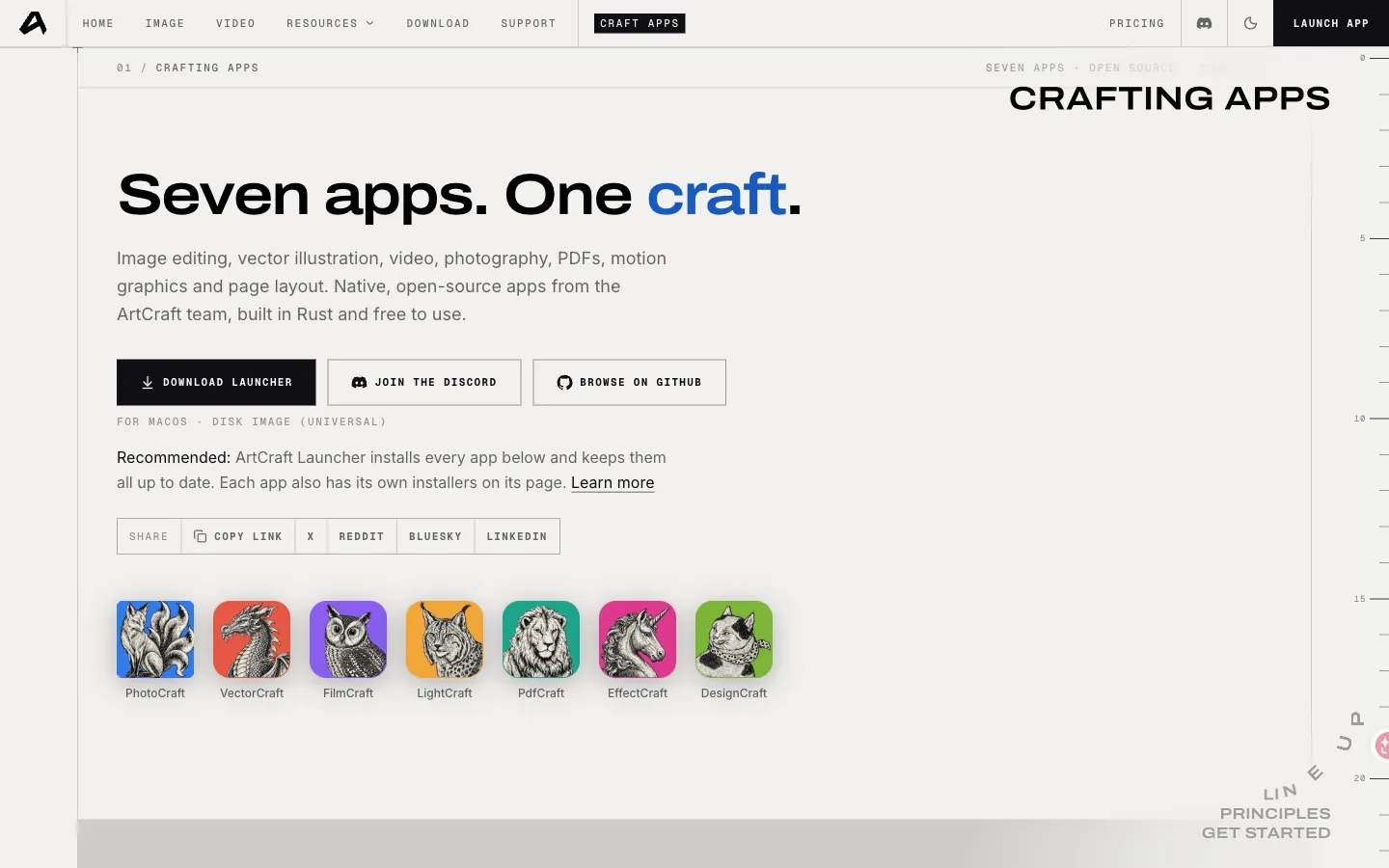
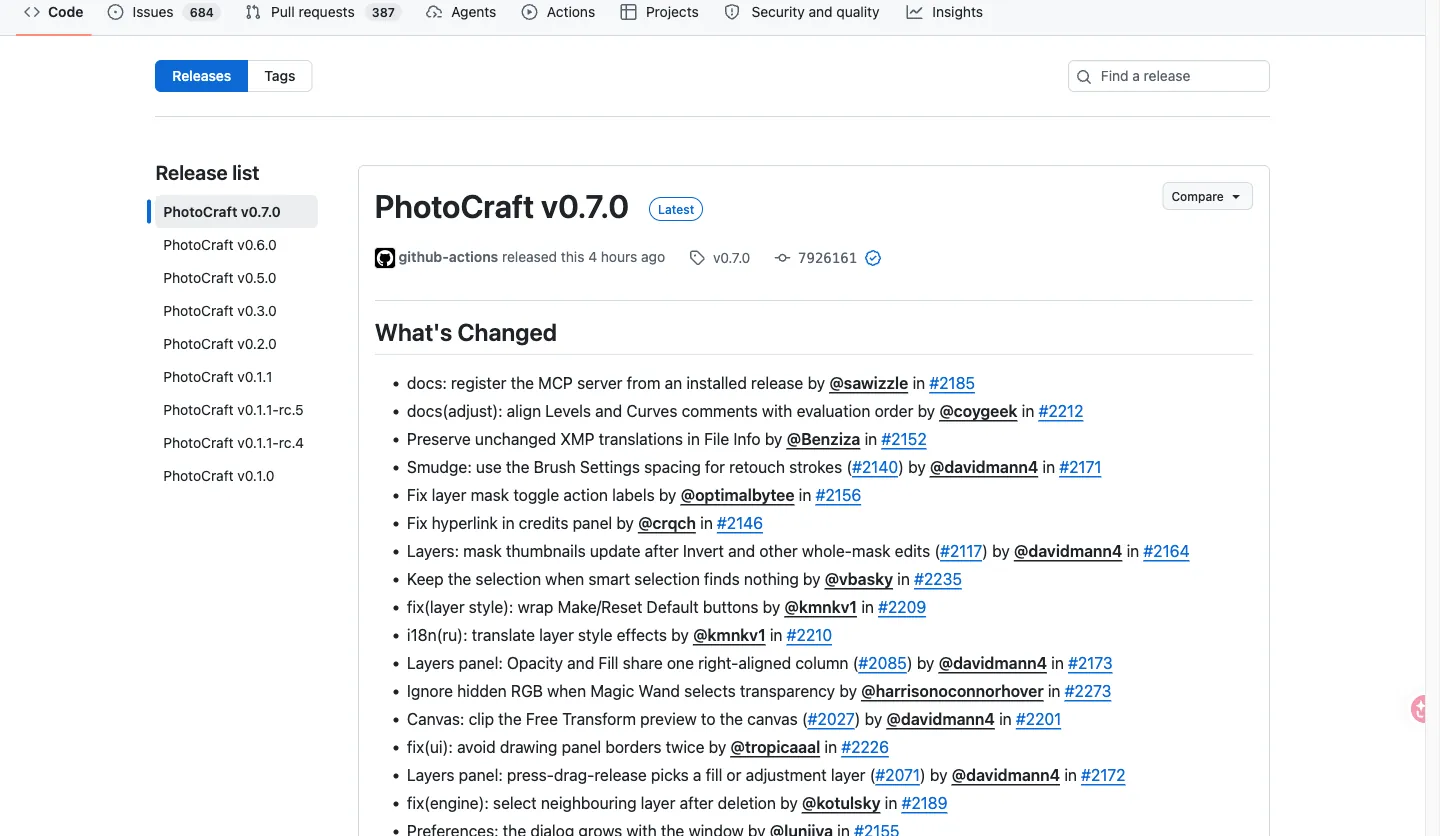
You need a 64-bit desktop OS, several gigabytes of free disk, and a browser that can reach getartcraft.com or GitHub. This independent guide does not host installers. Download from getartcraft.com/apps or from GitHub Releases on github.com/storytold.
Write down the version string. Copy the SHA-256 from the matching Release asset. You will hash the file before you run anything.
Windows
- Download the Windows 64-bit build.
- Open PowerShell in the folder that holds the file and hash it (for example
Get-FileHash .\filename.exe -Algorithm SHA256). The digest must match GitHub. - Run the installer. If SmartScreen shows an unknown-publisher warning, stop and re-check the hash. Do not skip verification to "just get it installed."
- Finish the wizard, then launch Photocraft or the suite shortcut.
Keep the installer until you confirm the app opens. If Windows quarantines the file, restore it only after the checksum matches.
macOS
- Download the macOS build for Apple silicon or Intel, matching the Mac you have.
- Hash the file (for example
shasum -a 256 filename.dmg) and compare it to the Release. - Open the disk image or package. Gatekeeper may ask you to confirm a newly signed app. That prompt is normal; a checksum mismatch is not.
- Drag the app to Applications if that is the flow for that build, then launch it once from Finder.
If macOS says the app is damaged, re-download. Do not disable Gatekeeper globally to force a bad file.
Linux
- Prefer the published Linux package on the apps page or the Release asset for your architecture.
- Hash the file with
sha256sumand compare. - Follow that asset's notes: AppImage, tarball, or distro package. Desktop x64 is the baseline; ARM builds exist only if the Release lists them.
- If no package fits your distro, clone the repo and build with the README's
cargoinstructions. That path is for people who already have a Rust toolchain.
Troubleshooting
- Blocked by the OS. Re-download from the apps page or GitHub. Compare SHA-256. Do not turn off antivirus to run an unverified binary.
- Wrong architecture. Apple silicon vs Intel, x64 vs ARM — grab the matching asset.
- App opens then crashes. Match the OS version in the table above. Try the same version from GitHub Releases if the apps page build misbehaves.
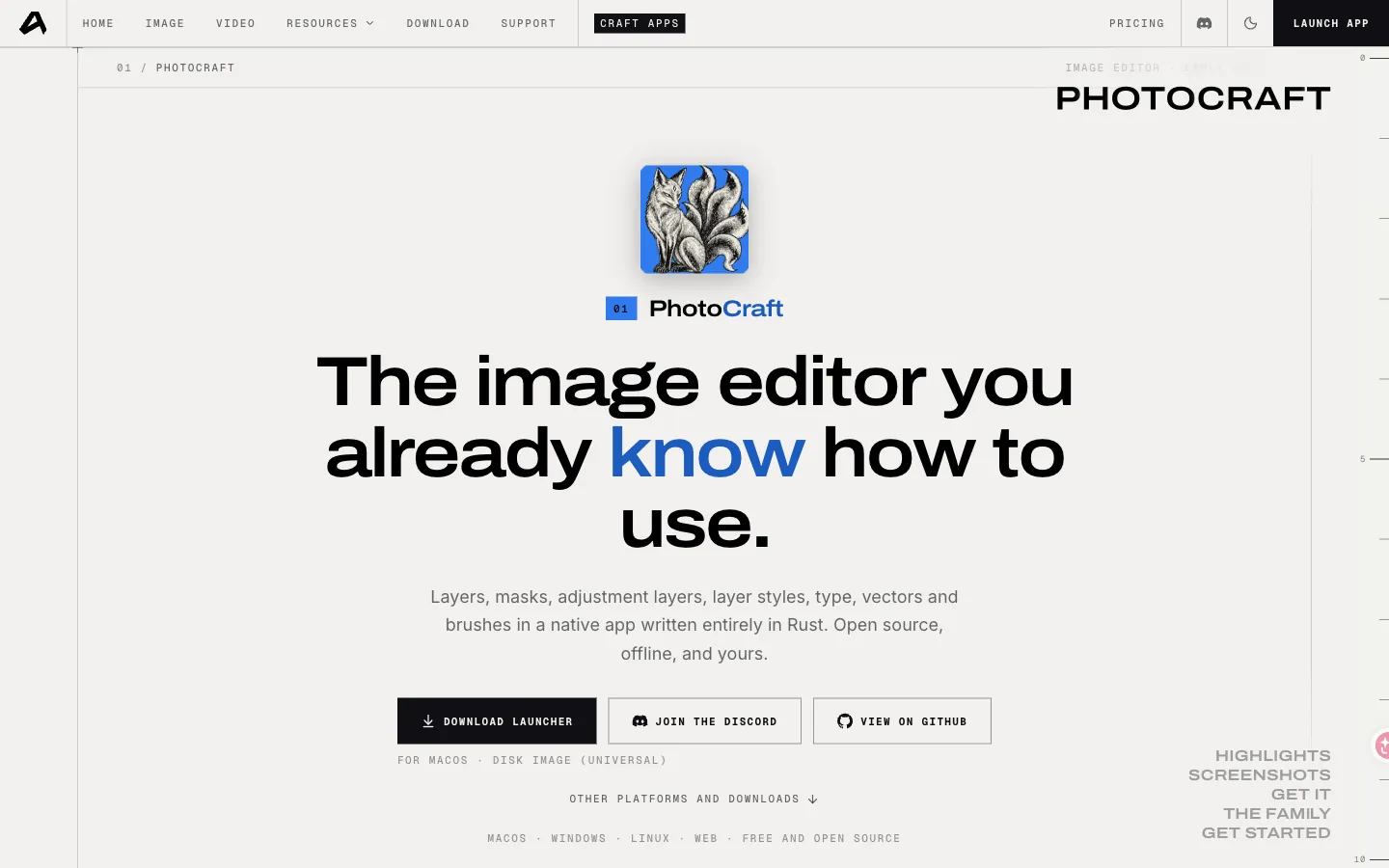
- Need Photocraft only. You can install Photocraft from its own Releases without installing every craft.
When the install is done, keep this page for the next update: same sources, same checksum step.
System requirements before you install
FAQ
Conclusion
Download from the official apps page, verify the SHA-256, then run the platform installer. If a build fails to launch, match the OS requirement and grab the same version from GitHub Releases. This independent guide does not ship binaries.
Affiliate disclosure
Download guide
Get it from the official site (external link). This independent guide does not host installers.
Related guides
Download ArtCraft — Free, Open-Source, Adobe-Compatible Creative Suite
ArtCraft is a free, open-source suite. Get the current Windows, macOS, and Linux builds from the official apps page or GitHub Releases, then verify the SHA-256. This independent guide never hosts installers.
ArtCraft GitHub Repositories — Downloads, Releases and Docs
The public source of truth is the GitHub organization. Use repository Releases for versioned builds and the official apps page for packaged installers. This independent guide only links out.